Choose your main bank or card app
Start with the one app you buy with most. You can add more after your first purchase.
During setup Spendguin asks you to pick the bank or card app you make most of your purchases with. Just one. It's easier to get one working first, then add the rest.
Which app to pick
- Pick the app for the card you use most, like your everyday credit card or debit card.
- It has to be the app that sends the purchase alert to your phone. Not sure? Next time you buy something, look at the icon on the alert. That's the one.
- Some banks have more than one app. TD, for example, sends real-time alerts through TD MySpend. Pick the one the alert comes from.
- You need the bank's app installed on this phone and be signed in to it.
Picking it
Tap your app. The others grey out so it's clear which one you picked. Tap it again to undo.
Then tap Next. Spendguin walks you through turning on purchase alerts in that app.
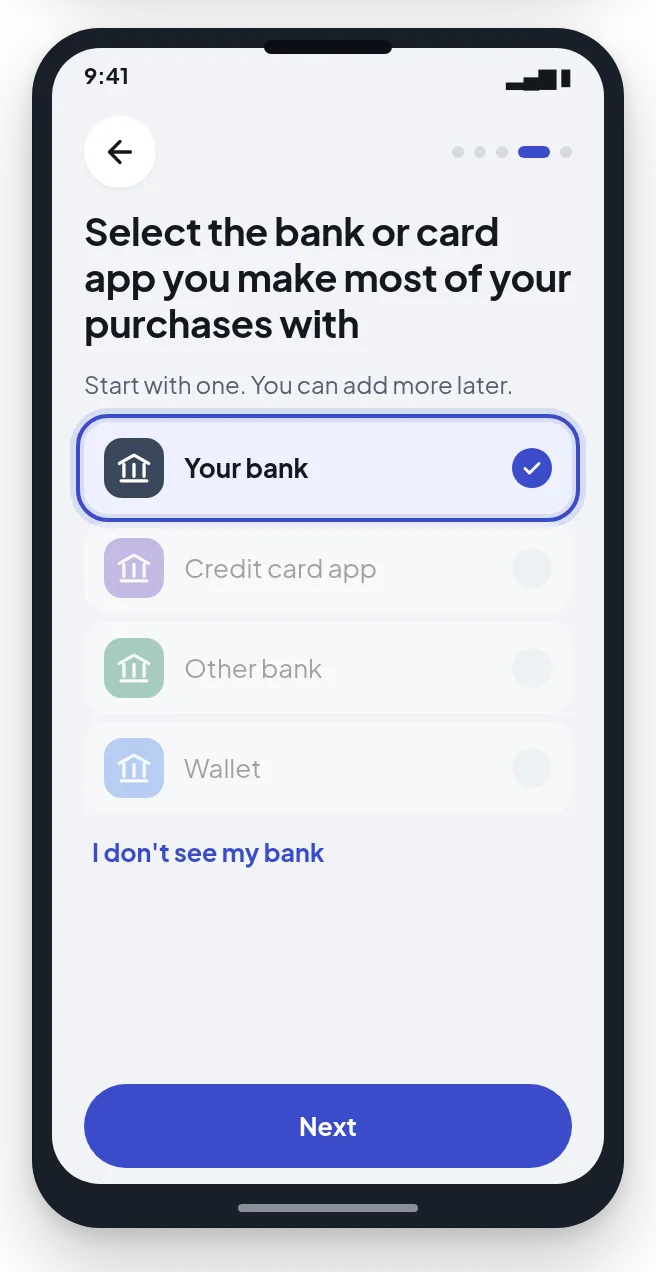
Pick one app, then tap Next
I don't see my bank
Tap I don't see my bank under the list.
Search your apps to find it by name. The list up top only shows apps that look like banks, so some get missed.
My bank's app isn't on this phone. Install it from Google Play, sign in, then come back.
My bank only texts or emails me. Spendguin can't read texts or emails. Most banks can send the same alerts as app notifications from their app, so check the bank app's alert settings.
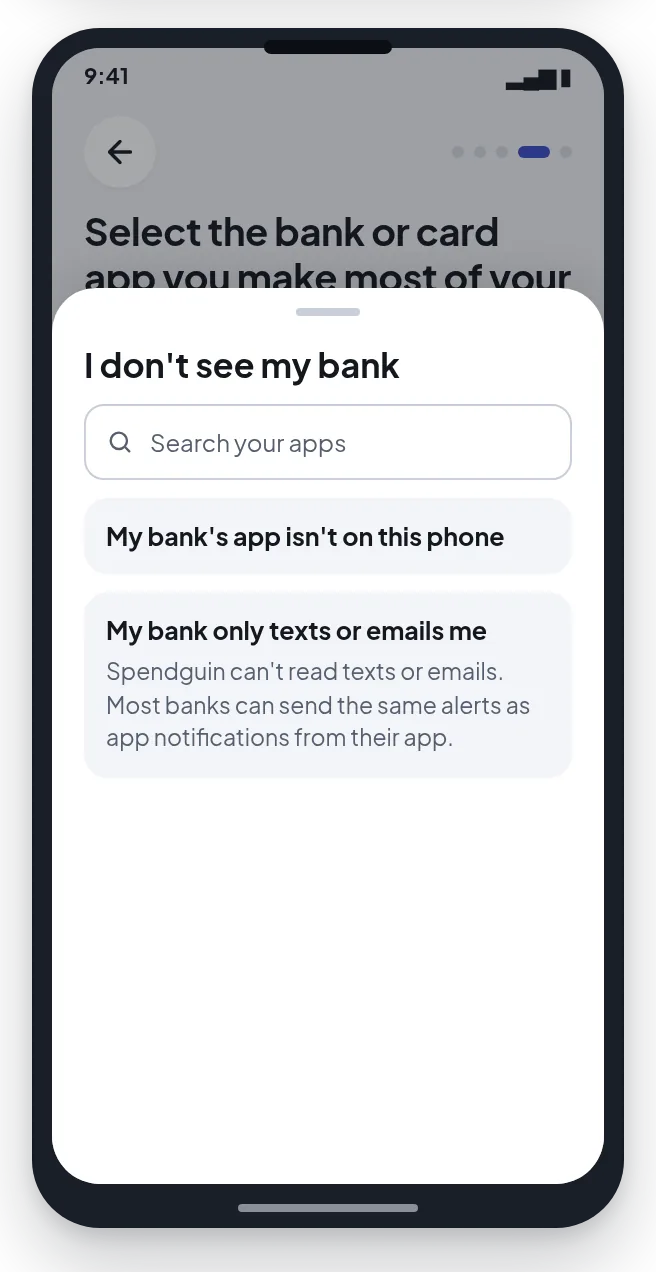
Search, or tell us why it's missing
Google Wallet and Samsung Wallet
Wallet apps only catch tap-to-pay purchases made with your phone. Online purchases and taps with your physical card won't show up. If you mostly pay with your card, pick your bank's app instead.
Changing it later
Go to Settings › Purchase tracking. Under Watched apps you can add an app or remove one. Adding another card or account