Turn on purchase alerts in your bank app
The one step that makes Spendguin work. It takes about a minute in your bank's app.
Spendguin doesn't connect to your bank. It sees your purchases through the alerts your bank app sends to your phone. If those alerts are off, nothing shows up. So this is the step that matters most.
You only do it once per card or account.
The short version
Here's what it looks like. Your bank's screens will look a bit different, but it's the same idea:
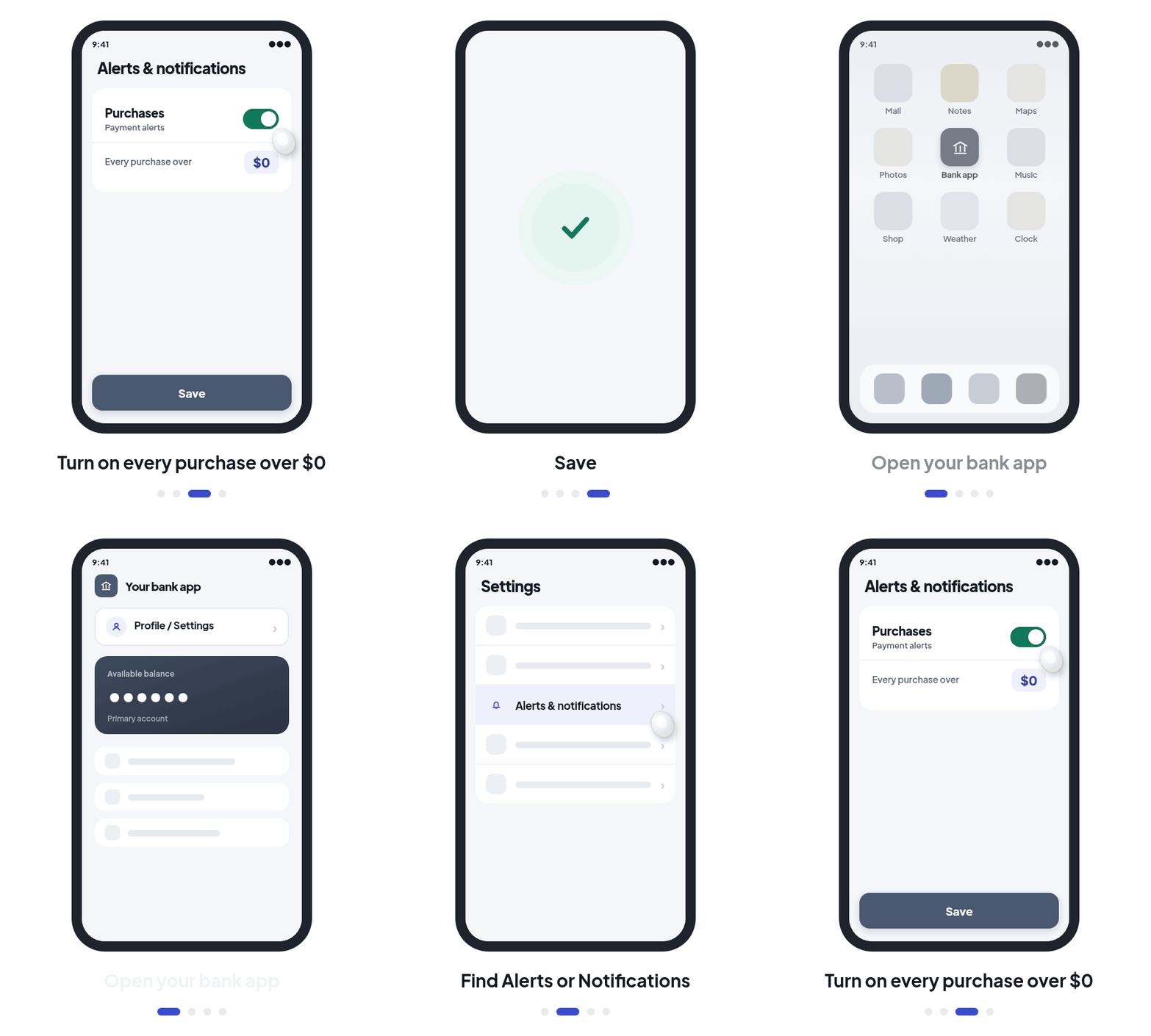
- Open your bank app.
- Find Alerts or Notifications.
- Turn on purchase alerts for every purchase over $0.
- Have them sent as app notifications, not texts or emails.
- Save, then buy something small to test it.
The steps below go one screen at a time. Your bank might be in steps for specific banks.
Before you start
- Your bank's app is on this phone and you're signed in.
- Spendguin has notification access.
- Your bank app is allowed to send notifications in Android (Settings › Notifications › App notifications).
- Start with the card you use most. You can add others later.
The steps
Every bank app is a bit different, but it almost always goes like this. Looking for your bank? Jump to steps for specific banks.
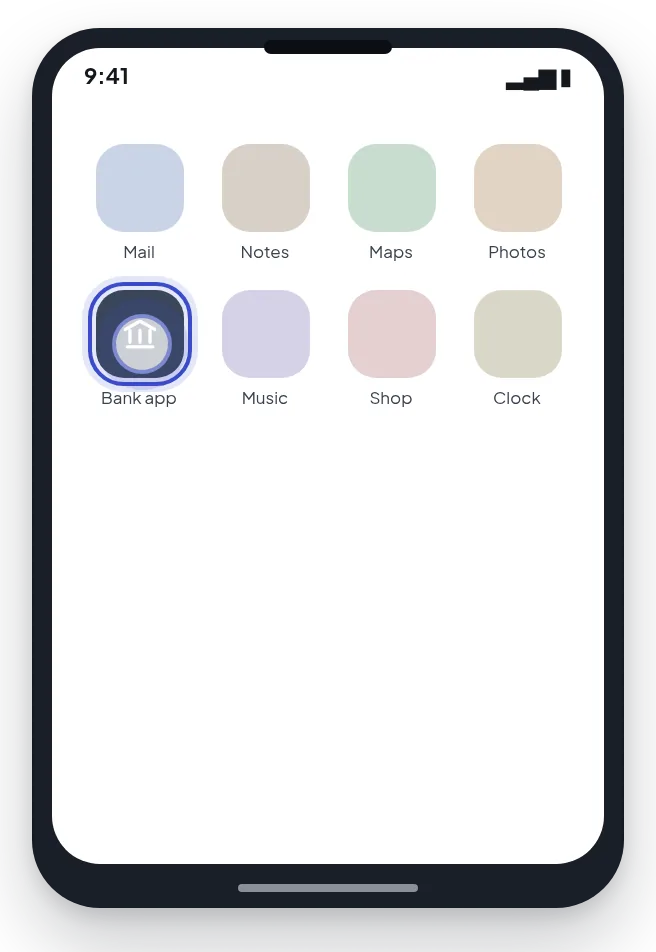
Open your bank app
In Spendguin, tap Open [your bank] to turn on alerts and it opens the app for you. Sign in.
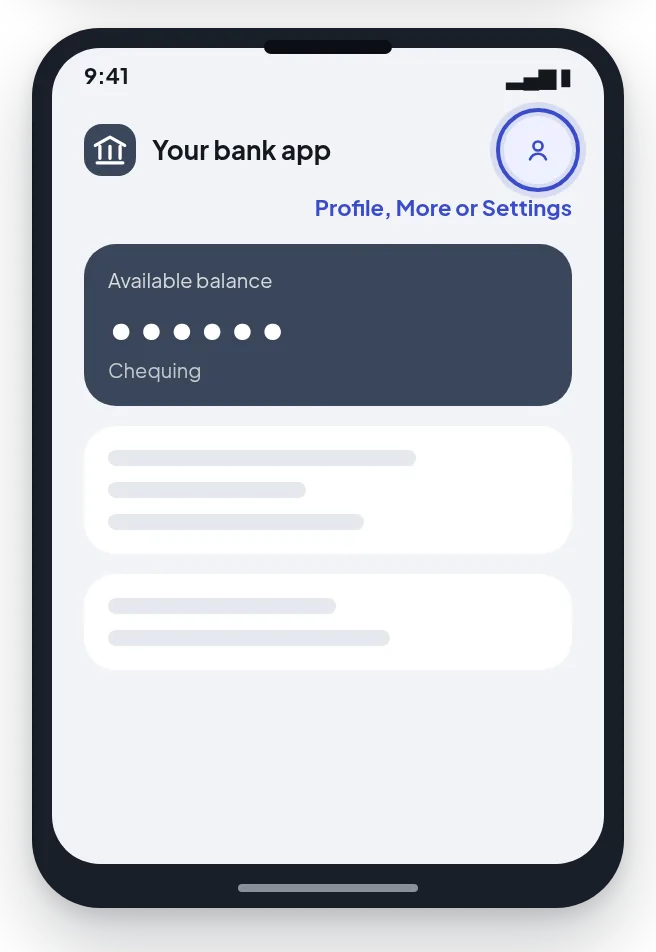
Open your bank app Go to your profile or settings
Usually a profile icon at the top, or More or Settings in the bottom menu.
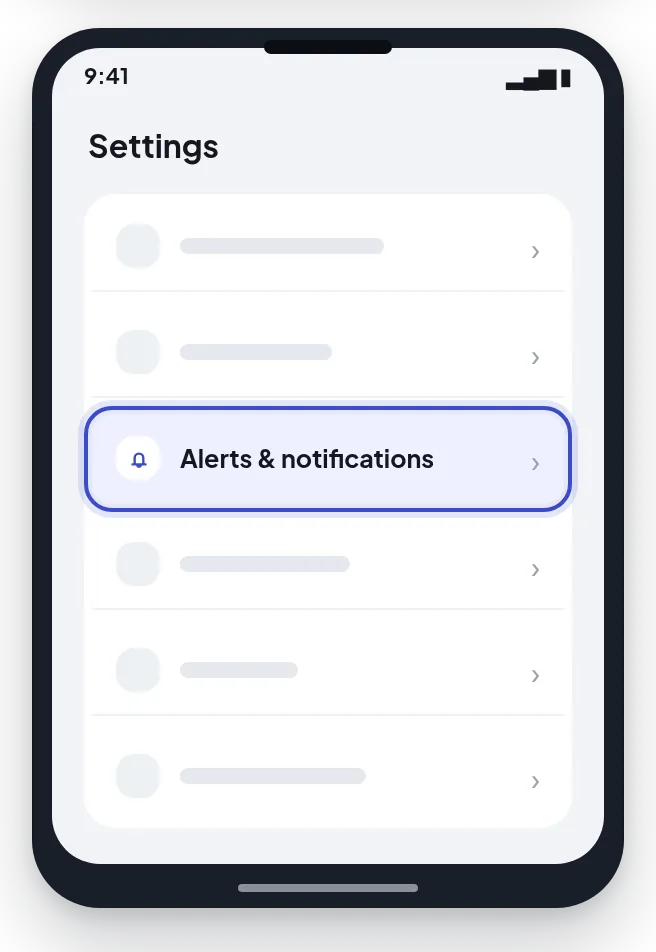
Profile, More or Settings Find Alerts or Notifications
It might be called Alerts, Manage alerts, Notifications or Alert preferences.
Look for Alerts or Notifications Turn on alerts for every purchase over $0
Turn on the alert for purchases or transactions. If there's an amount, set it to $0, or as low as it goes, so every purchase sends one.
Do this for each card or account you spend from.
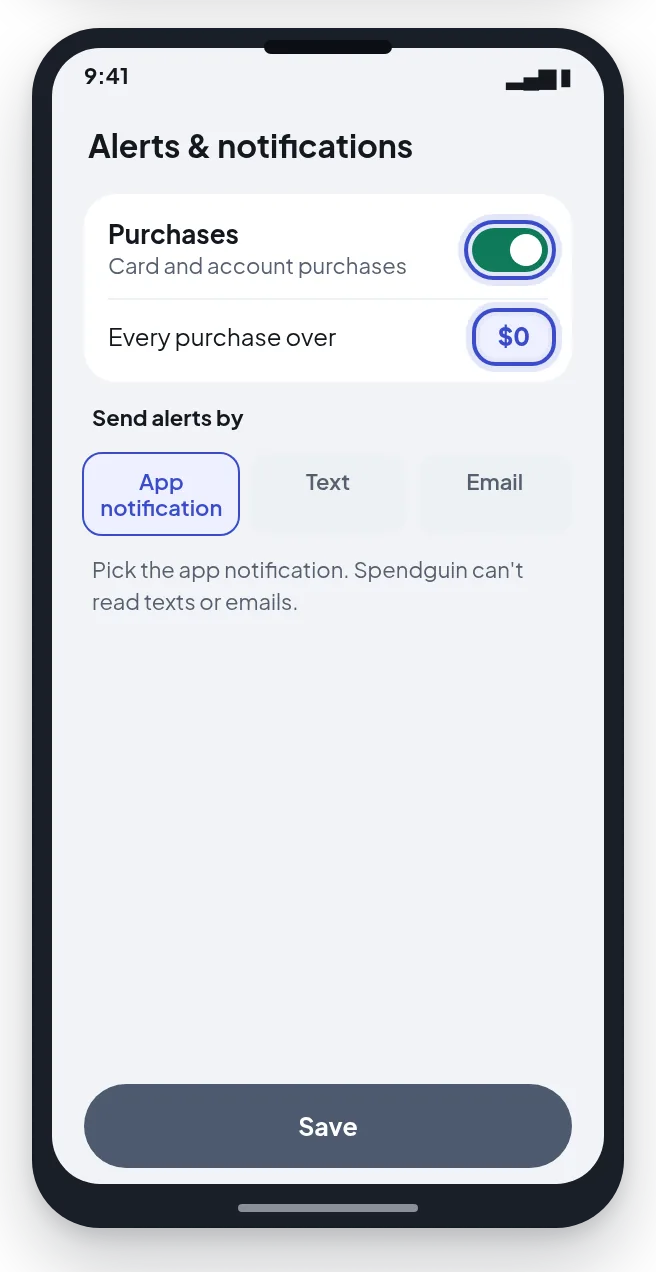
On, every purchase over $0 Pick app notifications
When it asks how to send them, pick app notification or push. Not text or email. Spendguin can't read those.
Some banks only send app notifications to one phone, so do this on the phone Spendguin is on.
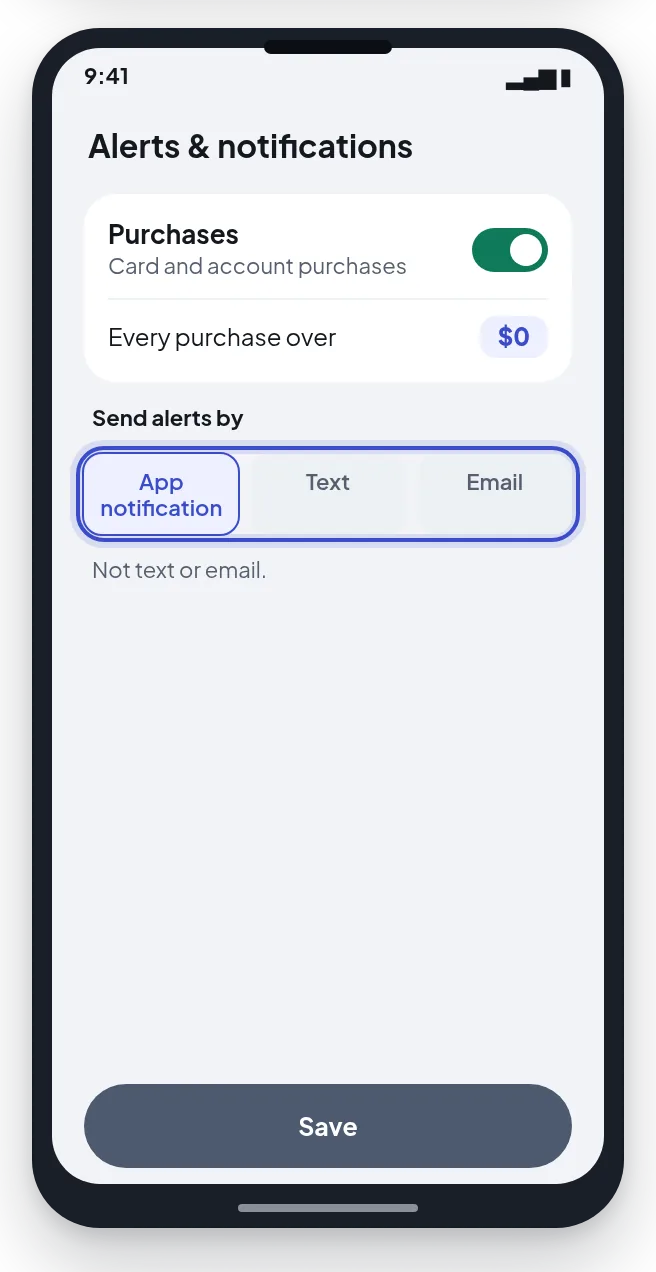
App notification, not text or email Save
Some apps save as you go. If there's a Save button, tap it.
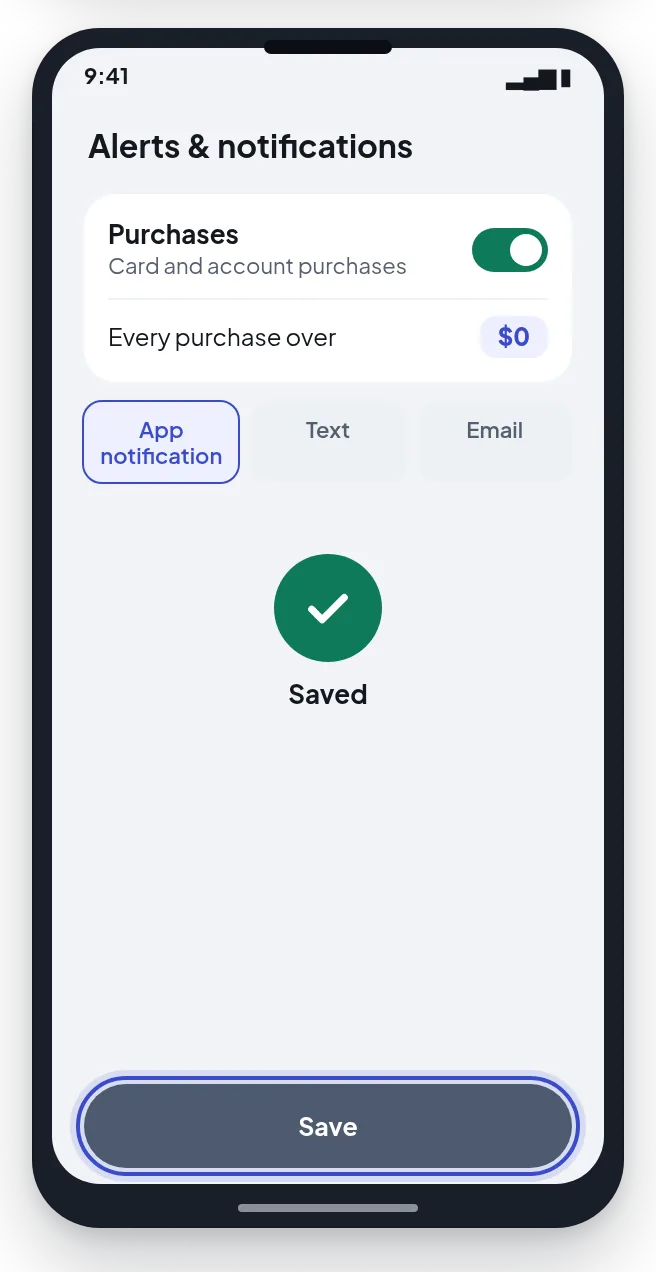
Save if there's a button Come back to Spendguin
Spendguin asks if you turned them on. Tap Yes, they're on.
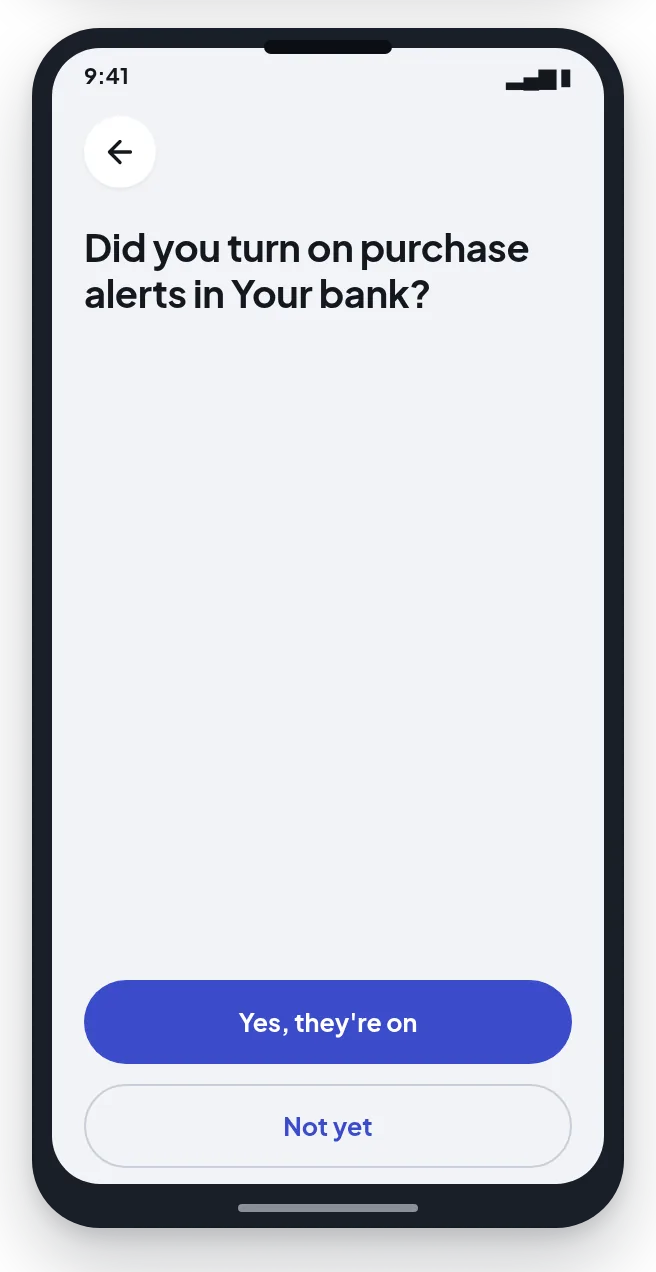
Tap Yes, they're on
What you'll see in Spendguin
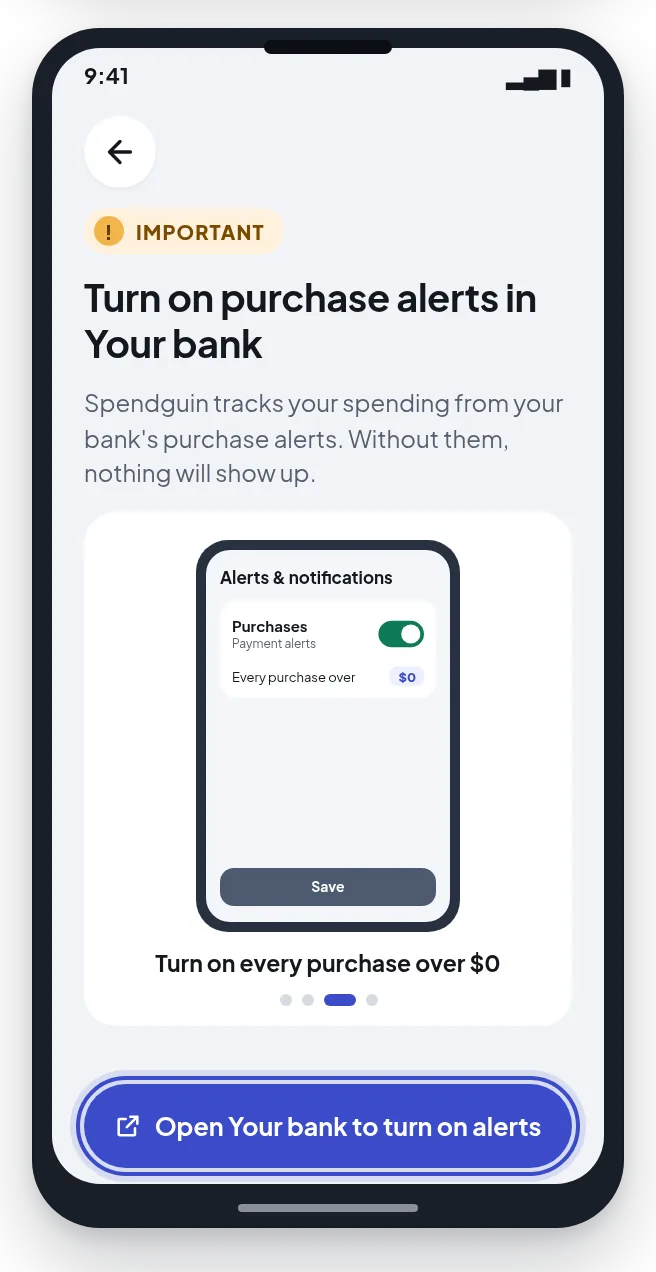
Right after you pick your main app, Spendguin shows this screen. The blue button opens your bank app.
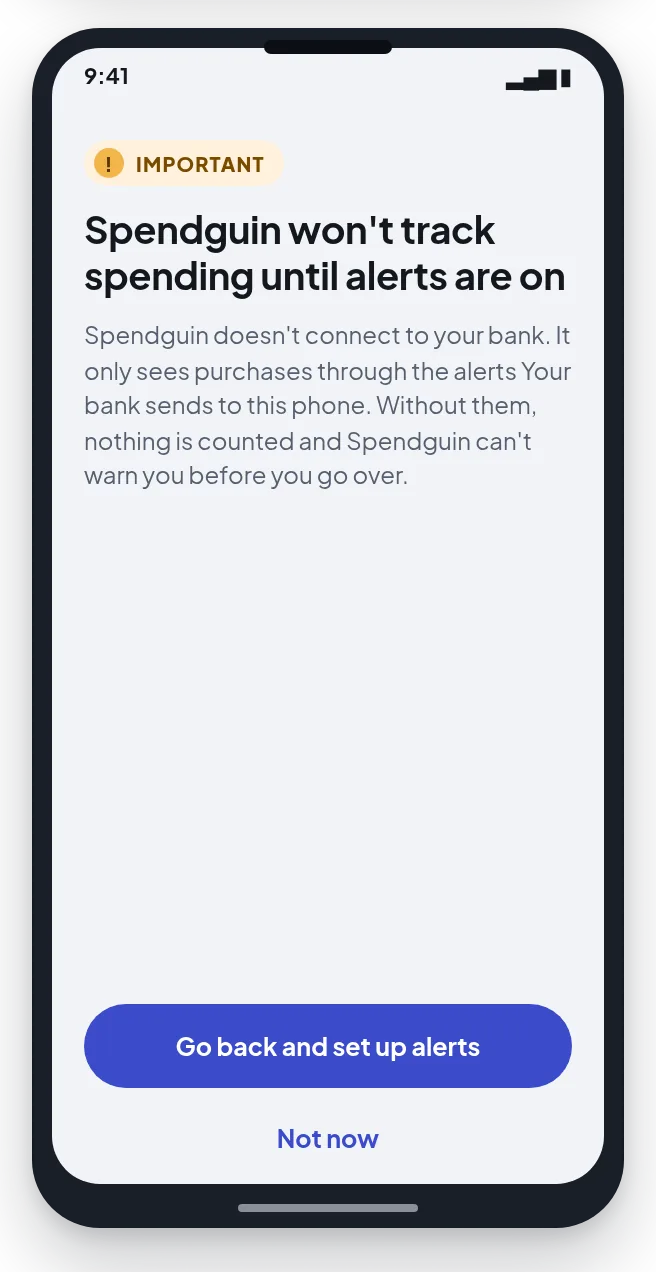
If you tap Not yet when you come back, that's fine. Spendguin just reminds you that it can't track anything until alerts are on. Tap Go back and set up alerts to try again, or Not now to finish later.
Until your first purchase comes in, a card on Today keeps the button handy. You can also go to Settings › Purchase tracking › Turn on purchase alerts.
Check that it worked
Until your first purchase comes in, Today shows a card saying it's waiting for your first alert. That's normal.
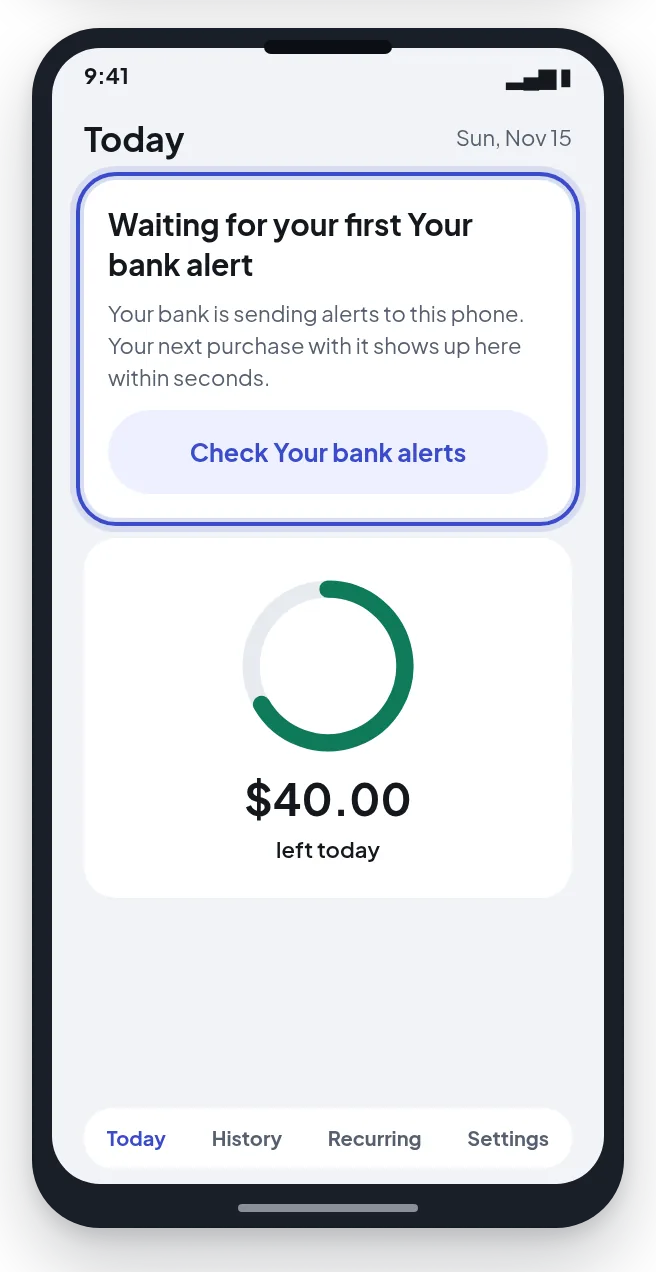
Buy something small with that card, like a coffee. Within a few seconds you should see:
- Your bank's alert pop up on your phone.
- The purchase on Spendguin's Today screen. The first time, Spendguin asks Count this card?
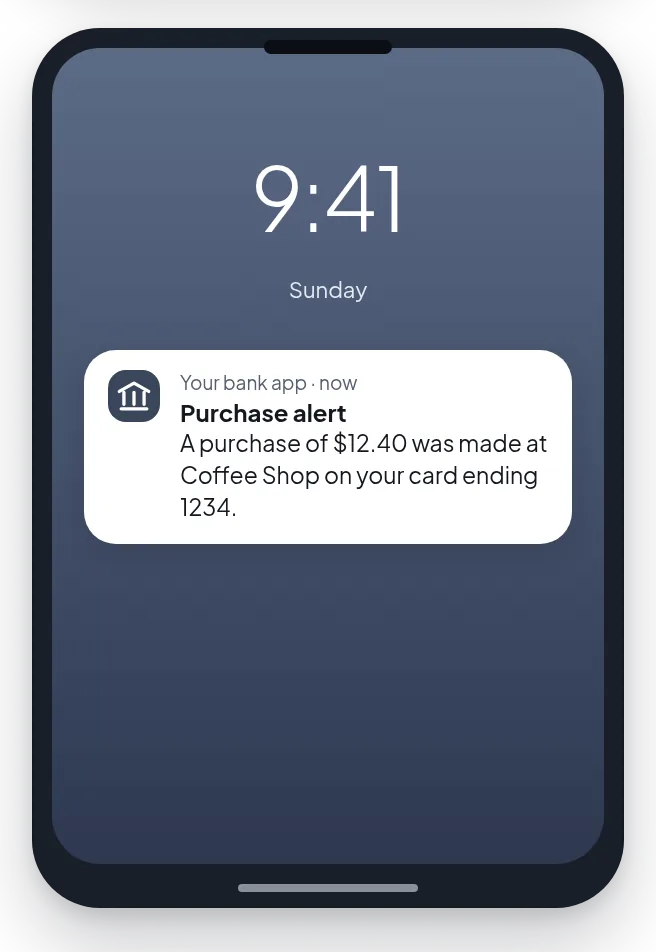
- No bank alert at all? The bank side isn't on yet. Go back through steps 3 to 6.
- Bank alert showed up, but nothing in Spendguin? See No purchases showing up.
Send a test alert in Settings only checks that Spendguin can send you notifications. It doesn't test your bank's alerts. A real purchase is the only true test.
Steps for specific banks
Every bank has its own guide for this, and it's better than anything we could copy here. So each bank gets its own page. It starts with a button to the bank's guide, then a short note on what to turn on. Type your bank's name or pick it from the list. Checked November 2026. Menu names can change when banks update their apps. If yours looks different, look for Alerts or Notifications in the menu.
United States
Canada
Wallets that work anywhere
No bank matches that. Use the general steps, or email support@spendguin.com with your bank's name and we'll help you find it.
Whichever bank you use, its notifications also have to be allowed in Android: Settings › Notifications › App notifications, then your bank app. If the alert never reaches your phone, Spendguin can't see it.
Don't see your bank here?
Use the general steps. Almost every bank app has purchase alerts somewhere under profile, settings or alerts. If you're stuck, email support@spendguin.com with your bank's name and we'll help you find it.