Turn on notification access
Spendguin needs notification access to see your bank's purchase alerts. Here's how to turn it on, on Pixel, Samsung and other Android phones.
Spendguin works by reading the purchase alerts your bank app puts on your phone. Android calls that permission notification access. Without it, Spendguin can't see anything.
Why Spendguin needs it
- Spendguin only uses alerts from the bank and wallet apps you pick. Everything else is ignored.
- The alert text stays on your phone. Only the amount, merchant, last card digits and time sync to your household.
- Spendguin never asks for your bank login. More on that
Turn it on from Spendguin
This is the easy way. Spendguin opens the right Android screen for you.
During setup you'll see Phone permissions. Tap Notification access.
Already set up? Go to Settings › Purchase tracking and tap Read payment notifications.
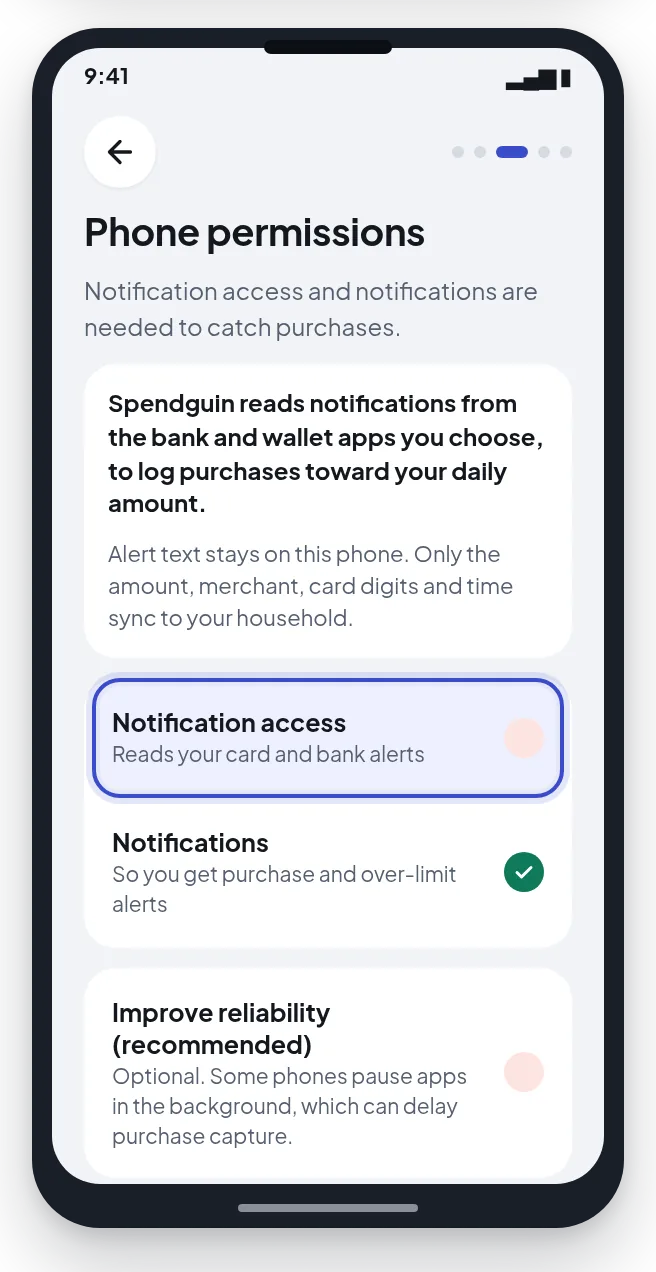
The Phone permissions screen in setup Android opens a list of apps. Tap Spendguin.
On some phones it shows as Spendguin spend capture. That's the same thing.
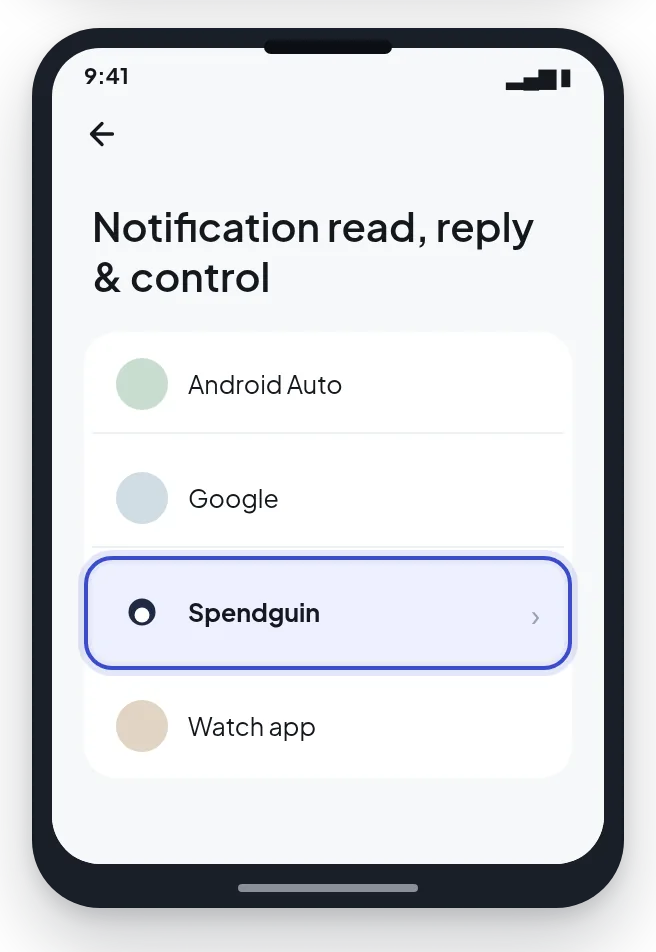
Your phone's list may look a bit different Turn on Allow notification access, then tap Allow on the warning.
Android warns that the app can read all notifications. That's normal for this kind of permission. Spendguin only uses alerts from the apps you pick.
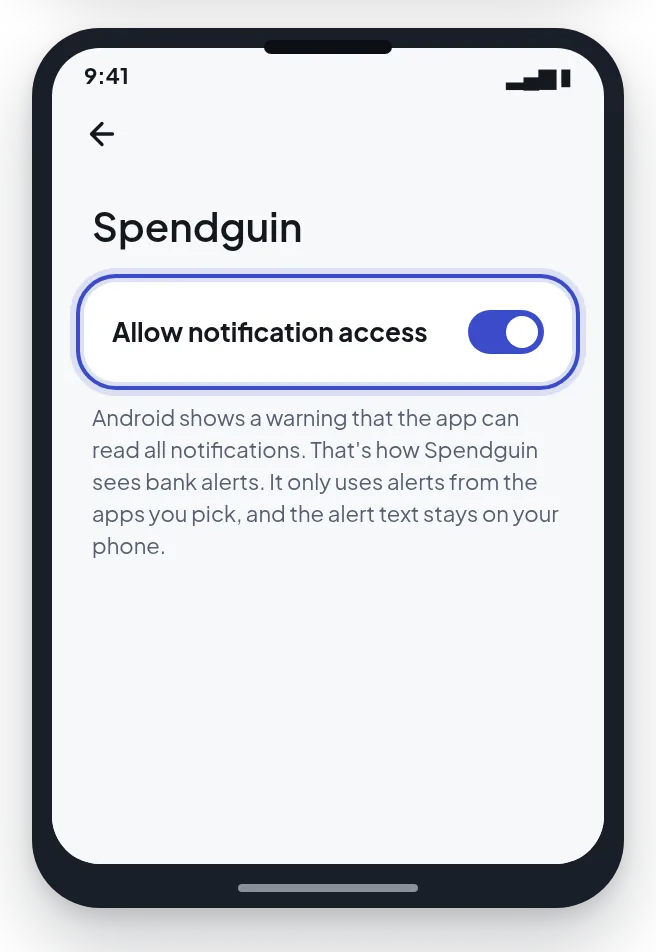
Turn on Allow notification access Go back to Spendguin. The row gets a green check when it's on.
Pixel and most Android phones
If you'd rather do it from your phone's Settings:
- Open your phone's Settings app.
- Tap Apps › Special app access › Notification read, reply & control.
- Tap Spendguin and turn on Allow notification access.
Source: Google Android Help. Older Android versions call it Notification access or Device & app notifications. Search your Settings for "notification access" if you can't find it.
Samsung Galaxy
- Open Settings › Apps.
- Tap the ⋮ (More) menu at the top right › Special access › Notification access.
- Turn on Spendguin.
Source: the second set of steps on Google Android Help. We couldn't find a Samsung page that lists this path, so if your Galaxy looks different, search Settings for "notification access".
Other phones
Open Settings and search for notification access. Every Android phone has it, it's just in a different spot.
The Notifications permission
Setup also asks for Notifications. That one is different. It lets Spendguin send you its own alerts, like purchases and going over. It isn't needed to catch purchases, but you'll want it on.
Improve reliability (battery)
This one is optional. Some phones pause apps in the background to save battery, which can delay or miss purchases. If purchases show up late or not at all, turn it on.
In Spendguin, tap Improve reliability (recommended) in setup or in Settings › Purchase tracking. Or do it from your phone:
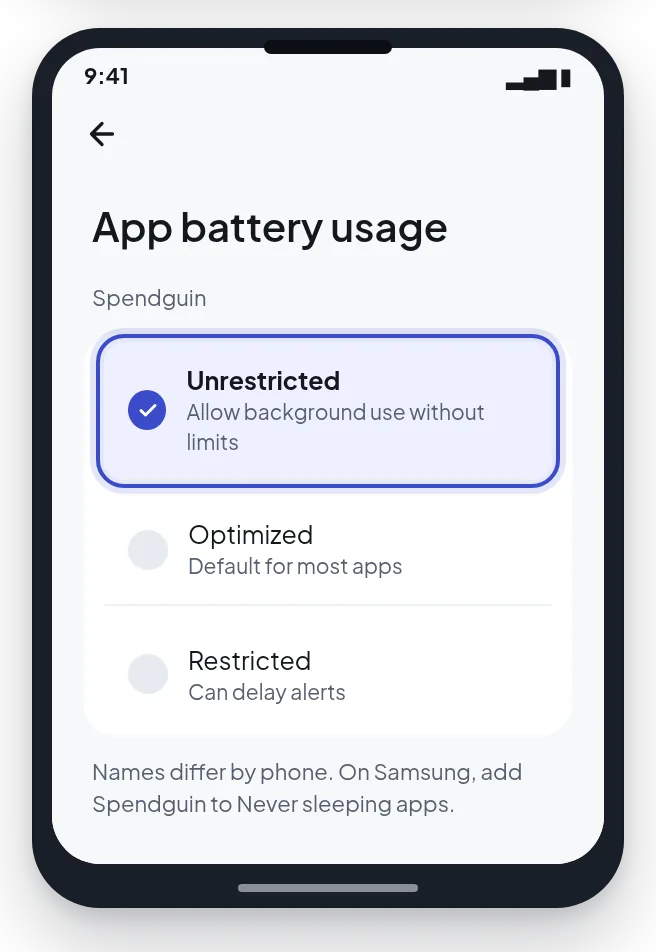
- Pixel: Settings › Apps › Spendguin › App battery usage. Pick Unrestricted (on newer versions, turn on Allow background usage first). We haven't found a Google help page for this path, so the exact names may differ.
- Samsung: Settings › Battery › Background usage limits › Never sleeping apps. Tap + and add Spendguin. On some models Battery is under Battery and device care. Source: Samsung support.
It keeps turning off
- Open Spendguin. It asks Android to reconnect every time you open it, which fixes most drop-offs after an update.
- Still off? Turn notification access off and back on for Spendguin.
- Turn on Improve reliability so Android doesn't put Spendguin to sleep.
- Phone cleaner or battery saver apps can turn it off too. Leave Spendguin out of them.